
EPUB to PDF Converter
Convert EPUB to PDF and get pages set like a printed book: justified text with words hyphenated where they should be, a contents page with page numbers, bookmarks at every level, footnotes and links you can click, and every font embedded. Choose Letter or A4 for printing, a 6 x 9 inch paperback ready for KDP, or a phone layout, and look through the real pages before you download. Free, no sign-up, and your EPUB never leaves your browser.
- Free, no sign-up, no watermark
- Made in your browser, never uploaded
- Print, 6 x 9 book or phone layout
- A contents page with page numbers
- Bookmarks, footnotes and links that work
- See the real pages before you download
- no account, no watermark, EPUBs up to 100 MB
- Free
- the PDF is made on your device
- 0 uploads
- print (Letter or A4), a 6 x 9 book, a phone
- 3 layouts
- the inside margin set for your page count
- KDP-ready
How do you convert an EPUB to PDF?
To convert an EPUB to PDF, drop the EPUB here. The converter reads its chapters, italics, footnotes and pictures in your browser and sets them on pages: a title page, a contents page with page numbers, each chapter starting on a new page, running heads and page numbers. Pick a layout and a type size, untick any section you don’t want, look through the pages in the preview, then download the PDF.
How to convert EPUB to PDF
From an ebook to pages in three steps.
Drop your EPUB
Drop the EPUB you want to convert to PDF, up to 100 MB. The EPUB to PDF converter reads it in your browser, so nothing is uploaded and there is no queue to wait in.
Pick a layout
Print on Letter or A4, a 6 x 9 inch paperback for KDP, or a phone. Choose the type size, check the title and author, and untick any section you don’t want. The preview shows the PDF’s real pages and updates as you change things.
Download the PDF
The PDF is ready by the time you have looked it over: one click saves it, named after the book. It opens with a contents page, and its bookmarks take you to any chapter.
Why use this EPUB to PDF converter
Built to make pages you would want to read, not just to change a file type.
Set like a printed book
Lines are justified and English words are hyphenated by the rules printers use, so there are no wide gaps between words. A paragraph never leaves one line alone at the top or foot of a page, a heading never sits at the bottom without its text, and a picture that doesn’t fit moves to the next page with its caption.
A contents page and bookmarks
The PDF opens with a contents page that gives each chapter its page number, and every entry is a link. The bookmarks keep the book’s levels: a part over its chapters, a chapter over its numbered sections. Footnotes go to the end of their chapter, linked from the mark in the text and back.
A 6 x 9 paperback for KDP
The book layout follows KDP’s rules for a paperback’s inside pages: the inside margin from KDP’s table for the page count, an even number of pages, every font embedded and no bleed. Left and right pages mirror each other, with the book’s title over the left page, the chapter over the right and page numbers on the outside. The check screen lists each rule and whether the PDF meets it.
Fonts embedded, Chinese included
Text is set in Source Serif 4, a book typeface, and the fonts go inside the PDF, so it looks the same on every computer and printer. A Chinese book is set in Noto Serif SC or TC, downloaded to your browser once, with punctuation kept off the start of a line as Chinese typesetting expects.
Free and private
There is no account, no watermark and no upload: the PDF is made in your browser and saved from it. That also makes it fast, because there is no file to send and no queue, and the next change to the layout takes a moment, not another upload.
Then read it, or hear it
Read the same EPUB in our EPUB reader without installing anything, or turn it into an audiobook with EPUB to audiobook. Need a cover for KDP? Make one with the AI book cover generator. Going the other way, PDF to EPUB makes an ebook from a PDF.
Which layout to choose
Each layout sets the same book for a different use. The type size can be made smaller or larger in any of them.
| Layout | 6 x 9 in book | Phone and tablet | |
|---|---|---|---|
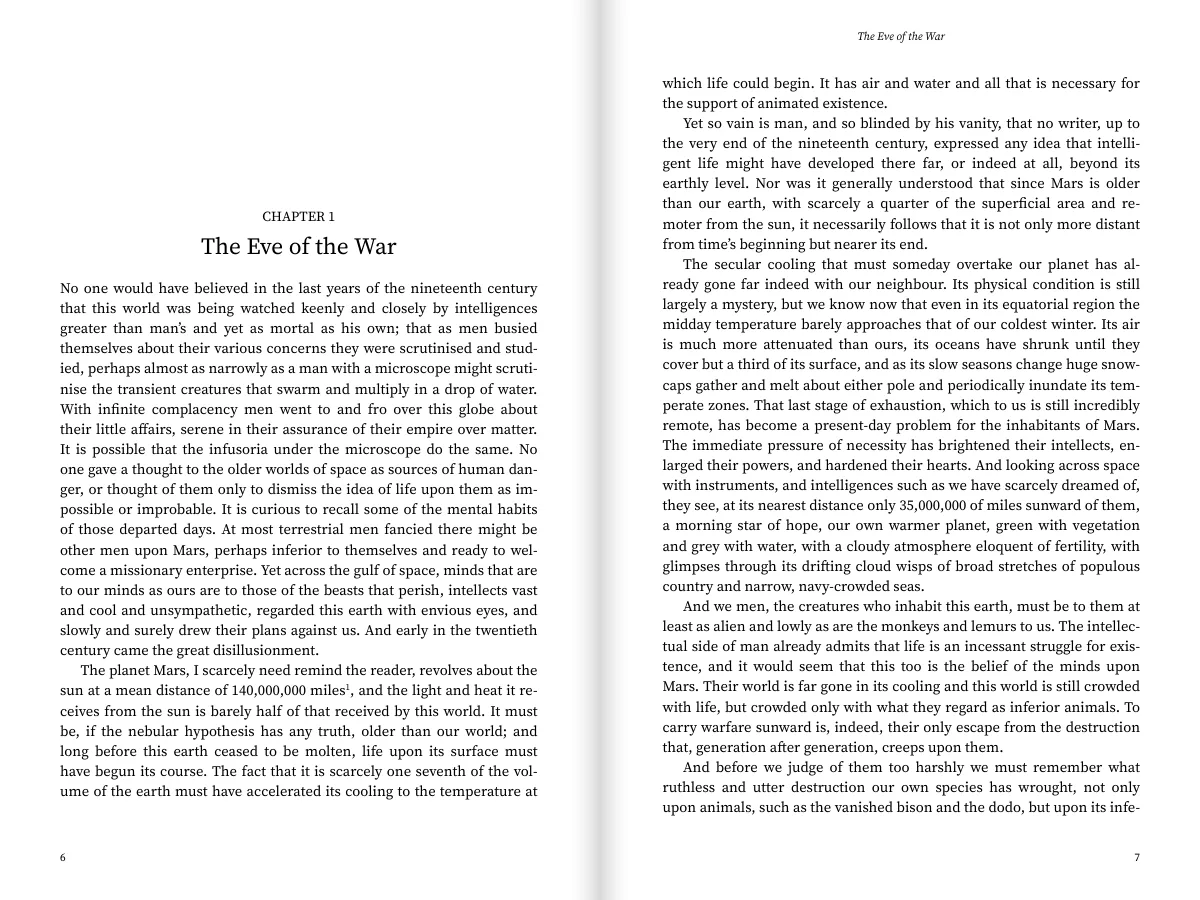
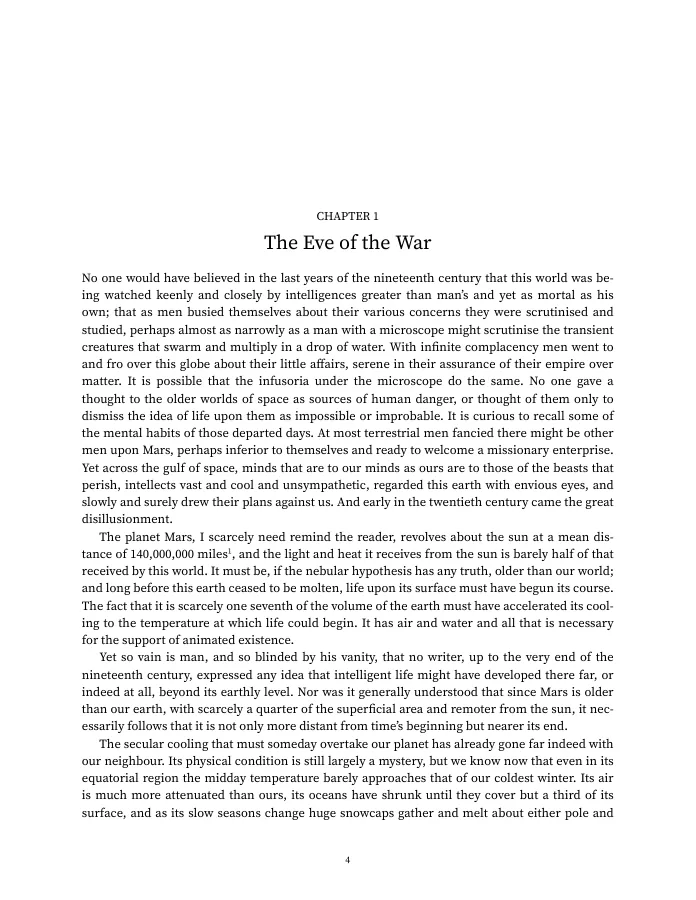
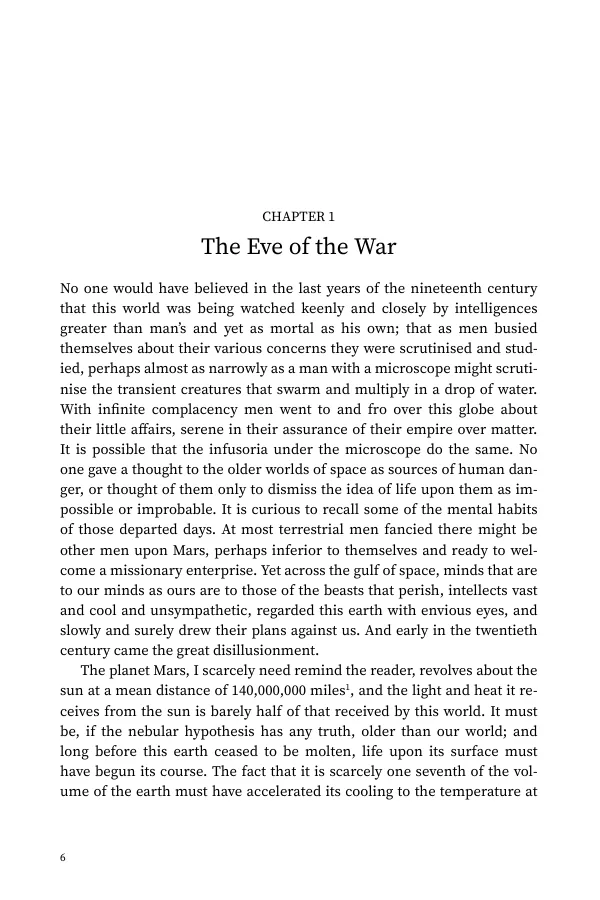
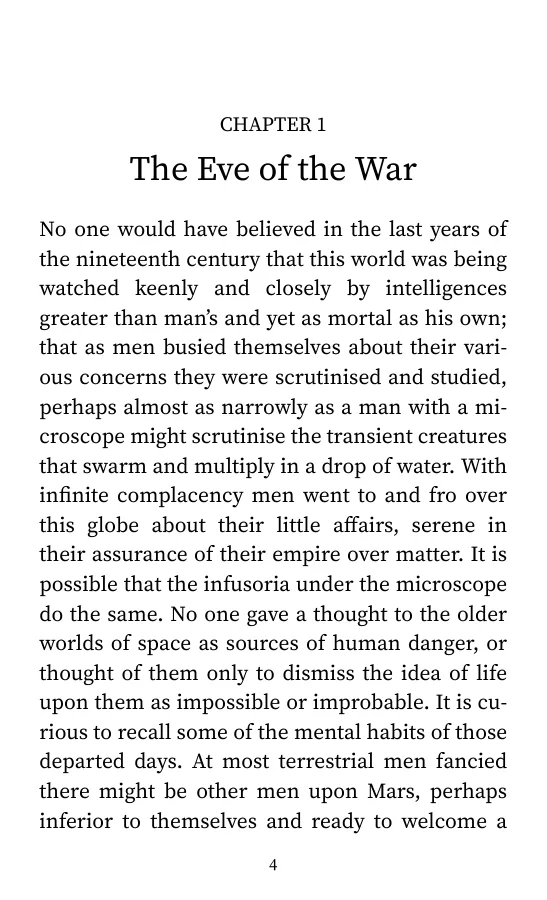
| Page size | Letter (8.5 x 11 in) or A4 | 6 x 9 in, a common paperback trim on KDP | A small page that fills a phone screen |
| Margins | The same on both sides | Wider on the inside, from KDP's table for the page count | Narrow |
| Type | 11 pt, justified | 10.5 pt, justified, as in a printed novel | 12 pt on a small page, so it reads large |
| Running heads | The chapter's title | The book on the left page, the chapter on the right | None |
| Page numbers | Centered at the foot | At the outside corner | Centered at the foot |
| Cover | The EPUB's cover as page 1, if you like | None: KDP takes the cover as its own file | The EPUB's cover as page 1, if you like |
| Best for | Reading on a computer, printing at home | A paperback on KDP, a printed proof copy | Reading on a phone or a tablet |
EPUB to PDF guide
Why convert EPUB to PDF
An EPUB has no pages of its own: the reading app lays the text out for each screen, so the book looks different on every device and can’t be printed as it is. A PDF fixes the pages, which is what you want for printing, for sending a book that looks the same to everyone, for writing notes on a page, or for a paperback’s inside pages.
A good EPUB to PDF conversion keeps what the EPUB means, not how one app showed it: chapters and headings, paragraphs, italics and bold, footnotes, pictures with their captions. It then sets those on pages with the care of a printed book.
EPUB to PDF for printing at home
Choose Print, then Letter or A4 for the paper in your printer. Pages have the same margins on both sides and a page number at the foot, so they read well printed on one side or both.
Print the contents page first to check it: every chapter is there with its page number. A larger type size makes a book easier to read on paper, and the page count tells you how much paper it takes.
For a booklet you will bind, the 6 x 9 book layout mirrors the margins of left and right pages.
EPUB to PDF for a KDP paperback
Kindle Direct Publishing asks for the inside of a paperback as one PDF, with the inside margin (the gutter) wider for thicker books so the text doesn’t disappear into the spine. The 6 x 9 book layout takes the margin from KDP’s table for the page count, a quarter inch wider to be safe, makes the page count even and embeds every font.
KDP’s paperbacks need at least 24 pages. If your book is shorter, the check screen says so; a larger type size adds pages.
- 1Drop your EPUB and choose the 6 x 9 in book layout.
- 2Read the KDP checks: page count, inside margin, pictures at 300 dpi.
- 3Download the PDF and upload it on KDP as the manuscript, with 6 x 9 in trim and no bleed.
- 4Make the cover with the page count the check screen shows.
EPUB to PDF in Chinese and other languages
Books in English and other languages written in Latin letters are set in Source Serif 4, with English words hyphenated. A Chinese book is set in Noto Serif SC for simplified or TC for traditional characters, chosen from the book’s own text; the font is downloaded once to your browser and kept for the next book.
Chinese lines are justified between characters, each paragraph starts two characters in, and closing punctuation never starts a line. If a character isn’t in the fonts, the check screen lists it before you download.
What this EPUB to PDF converter can’t convert
Copy-protected EPUBs (DRM), such as books bought in most ebook stores, can’t be opened. Convert only books you are allowed to change, such as your own manuscript or a public domain edition.
An EPUB that keeps its pages as pictures (a comic or a picture book in fixed layout) has no text to set; the converter tells you when it finds one. An EPUB’s own colours and fonts are replaced by the book layout, which is what makes the pages consistent.
Check the PDF before you print
The preview on the check screen is the PDF itself, drawn page by page, and in the book layout it shows facing pages the way the printed book opens. Look at a chapter opening, a page with a picture and the last page.
For KDP, open the PDF in KDP’s own previewer after you upload it as well: it is the final word on what will be printed. If something needs changing, fix it in the EPUB or on the check screen and make the PDF again; it takes seconds.
Who converts EPUB to PDF
Anyone who needs an ebook on pages.
Self-published authors
A paperback’s inside pages for KDP, made from the EPUB they already have.
Readers who like paper
A public domain book printed at home, with a contents page and page numbers.
Students and teachers
Chapters printed to mark up, with page numbers to cite.
Editors and proofreaders
Fixed pages everyone can refer to by number.
Book clubs
The same pages for every member, on paper or on screen.
Audiobook narrators
A script on paper, set large enough to read from in the booth.
EPUB to PDF questions
Convert your EPUB to PDF now
Drop an EPUB, pick print, a 6 x 9 book or a phone, and look through the real pages before you download. Free, with no sign-up, and nothing leaves your browser.