Chrome Read Aloud: How to Make Chrome Read Pages to You
How to use Chrome read aloud: Reading mode on a computer, Listen to this page on Android, what to use on iPhone and Chromebook, Edge Read aloud and PDFs.
VoiceBookify8 min read

On this page
Chrome read aloud is built in on a computer: open a page in Chrome's Reading mode, press Play, and Chrome reads it to you while it highlights each word or sentence. On an Android phone the same job is done by Listen to this page in Chrome's menu. Chrome for iPhone has no read aloud of its own, and some pages, along with files such as PDFs, are outside what Google's help pages say Reading mode handles.
Below are the steps for each device, checked against Google's, Microsoft's and Apple's help pages on 13 November 2026, the settings worth changing, what to do when the option isn't there, and how Microsoft Edge's Read aloud compares.
Chrome read aloud at a glance
| Device | Built-in feature | How to start | Good to know |
|---|---|---|---|
| Windows, Mac, Linux, Chromebook | Reading mode, then Play | Right-click the page > Open in reading mode, or Alt+Shift+R (⌘+Option+R on a Mac) | Not every site opens in Reading mode |
| Android phone or tablet | Listen to this page | More (⋮) > Listen to this page | 25 languages; keeps playing with the screen locked |
| iPhone and iPad | None in Chrome | Safari's Listen to Page, or Speak Screen in Settings | Chrome's Reading mode there has no Play button |
| Chromebook, any app | Select-to-speak | Highlight text, then Search+S | Reads text in any app, not only Chrome |
| Microsoft Edge | Read aloud | Ctrl+Shift+U, or right-click > Read aloud | Also reads PDFs in Edge's PDF reader |
How to make Chrome read aloud on a computer
Read aloud lives inside Chrome's Reading mode, a clean view of the page's text, full screen or in the side panel. Google's Chrome Enterprise release notes list read aloud in Reading mode for Chrome 134 on Windows, macOS and Linux, and the Reading mode help page gives the same shortcut for ChromeOS.
- Open the page you want to hear. Articles, blog posts and news stories work best.
- Open Reading mode. Right-click the page and choose Open in reading mode, or press Alt+Shift+R on Windows, Linux and ChromeOS (⌘+Option+R on a Mac). The Reading mode icon in the address bar and More > More tools > Reading mode do the same.
- Press Play at the top right of the Reading mode panel.
- Steer it. The buttons beside Play jump to the previous or next sentence, and the speed control makes it faster or slower. Press Pause to stop.
Google notes that "Reading mode automatically downloads Google natural voices for your current language. If download fails, the system voice for your language will be used instead."
Chrome reading mode settings worth changing
Reading mode's Settings button holds everything that changes how it sounds and looks:
- Voice selection: pick another voice, and add languages for pages that aren't in yours.
- Highlighting: Adaptive, Word, Sentence or Off. Word highlighting is the easiest to follow; turn it off if the movement distracts you.
- Display: colour theme, font, line height, letter spacing, line focus, and whether links and images show.
When Chrome reading mode won't open a page
Google is plain about the limits: Reading mode "is not compatible with all sites and formats, like video or forum websites", and it names image galleries, interactive maps, forms, quizzes, payment pages and login screens. Its tip for a page that won't open is to highlight the content on the original page first, so Reading mode opens with that text.
When that doesn't work either, copy the text and paste it into a reader that takes any text, such as our free text to speech reader.
Chrome read aloud on Android: Listen to this page
On an Android phone or tablet, Chrome's Reading mode has no Play button. Reading aloud is a separate feature, Listen to this page:
- Open the page in Chrome.
- Tap More (⋮) > Listen to this page.
- Use the player at the bottom: play and pause, rewind and fast forward, and tap 1.0x to change the speed.
- Tap Options to choose a voice, or to turn Highlight text & auto scroll on or off.
You can switch tabs or lock the screen and it keeps playing. Google lists 25 languages, and the feature needs the setting Make searches and browsing better turned on. If Listen to this page isn't in the menu, Google says, the page isn't available for playback.
There are two kinds of playback. Standard playback reads all the words on the page; AI playback "generates podcast-like conversations from the page" instead, and only when Chrome's language is English. When AI playback is available it is the default, so switch to Standard playback when you want to hear the page itself.
Chrome read aloud on iPhone and iPad
Chrome for iPhone and iPad has a Reading mode with fonts and background colours, but no read aloud. iOS has two ways of its own:
- Safari's Listen to Page. Apple's guide to listening to a webpage in Safari says: tap the Page Menu, then Listen to Page. It works on "supported webpages".
- Speak Screen and Speak Selection. Turn them on in Settings > Accessibility > Read & Speak (Apple's steps). Speak Screen reads whatever is on the screen when you swipe down from the top with two fingers, so it works in Chrome too; Speak Selection reads text you select when you tap Speak.
Chromebooks and Android: Select-to-speak
Besides Chrome's own features, both systems can read selected text in any app.
- Chromebook. Turn on Settings > Accessibility > Text-to-Speech > Select-to-speak. Then hold the Search key and drag over text, or highlight text and press Search+S. It can highlight each word as it is spoken and shade the rest.
- Android. Turn on Settings > Accessibility > Select to Speak and its shortcut, then swipe up with two fingers (three with TalkBack on) or tap the Accessibility button, and tap Play. Google warns that it "might not work with every mobile web browser" (help page).
Edge read aloud: the built-in alternative
Microsoft Edge has a Read aloud of its own, and it also reads PDFs. From Microsoft's accessibility page:
- Start it by right-clicking anywhere on the page and choosing Read aloud, or press Ctrl+Shift+U (Command+Shift+U on a Mac). The same keys stop it.
- Voice options change the voice and speed. Edge's Reading mode (F9) gives a cleaner page to listen to.
- PDFs: Edge's built-in PDF reader has Read aloud on Windows and macOS, which makes Edge read aloud the easiest built-in way to hear a PDF.
- Offline and mobile: Microsoft's Read aloud page says only a few voices are available offline, and that Read aloud is also in the Edge apps for iOS and Android.
When built-in read aloud isn't enough
Chrome's Reading mode is free and good for an article you are reading right now. It is less suited to files, to long reading, and to listening away from the screen. That is what our text to speech reader is for: it runs in any browser, Chrome on an iPhone included, and reads with your browser's free voices or with AI narrators.
PDFs, ebooks and Word files. Google's help pages don't say Reading mode works on PDFs in Chrome's viewer. The reader opens PDF, EPUB, Word, text and Markdown files inside your browser and leaves out what listeners usually skip, such as running headers and page numbers. To start with a PDF, use Read PDF Aloud.
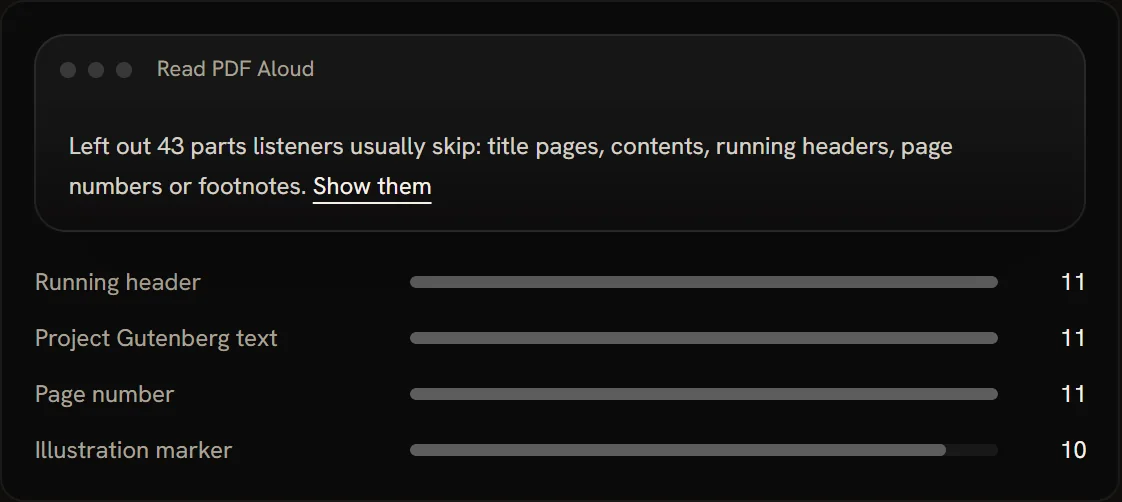 What the reader left out of a sample PDF before reading it
Following along. The sentence being read lights up, and so does each word when the voice reports words. In our tests Windows voices, Edge's natural voices and our AI narrators report each word, while Chrome's own Google voices report sentences only. Click any sentence to start from there.
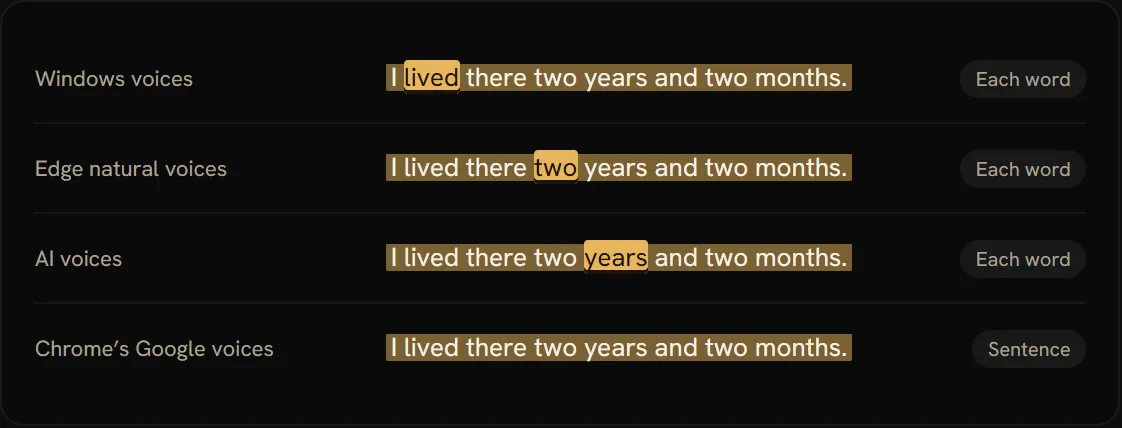 How far each kind of voice can highlight: each word, or the sentence
Keeping your place. If you tend to lose the line, the reading ruler puts a bar, a window or an underline on the line you are on and moves with the voice, or with the mouse, the arrow keys or a finger when you read without sound. It works on PDFs too.
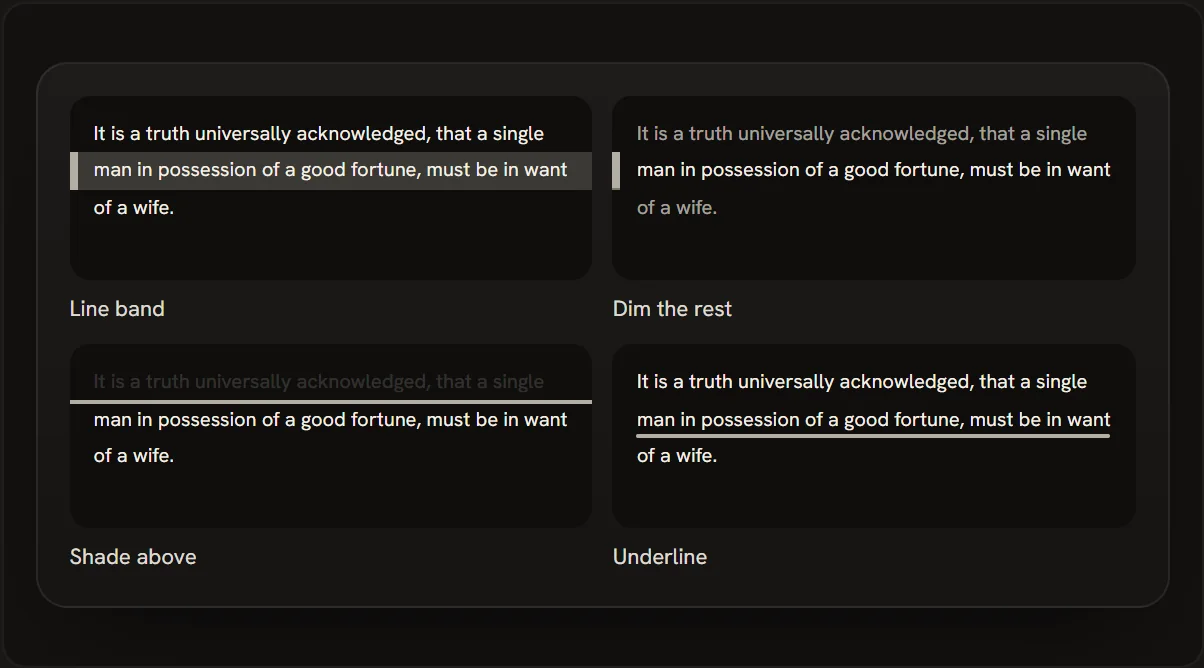 The reading ruler's four styles
Listening with the screen off. AI narrators keep reading with the screen locked and can save what they read as an MP3 to play anywhere. There are 40 of them in 9 languages, and they use credits, about one credit per 1,000 characters; browser voices stay free.
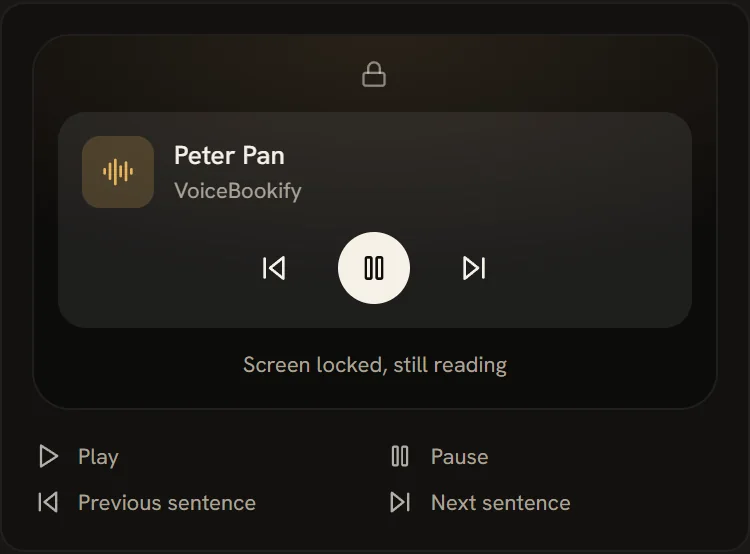 An AI narrator going on with the screen locked
FAQ
Does Chrome have a read aloud feature?
Yes, on a computer: open a page in Reading mode (right-click > Open in reading mode, or Alt+Shift+R) and press Play. On Android it is Listen to this page in Chrome's menu. Chrome for iPhone and iPad has none of its own.
Why is there no read aloud in my Chrome?
On a computer, check that Chrome is up to date: Google's release notes list read aloud in Reading mode from Chrome 134 on Windows, Mac and Linux. If Reading mode opens but shows nothing, the site isn't supported; highlight the text first and try again. On Android, Listen to this page only appears on pages that support it, and needs Make searches and browsing better turned on.
Can Chrome read a PDF aloud?
Google's help pages don't say Reading mode works on PDFs. Edge's PDF reader has Read aloud built in, and our reader opens a PDF and reads it in any browser.
Can I change the voice in Chrome read aloud?
Yes. In Reading mode, open Settings > Voice selection; you can also add languages there. On Android, tap Options > Voice in Listen to this page.
Is Chrome read aloud free?
Yes. Reading mode, Listen to this page, Select-to-speak and Edge's Read aloud all come with the browser or the system at no cost.
Does Chrome read aloud work offline?
Google's pages don't say. Microsoft says only a few Edge voices work offline. In our reader, the voices listed under "On this device" keep working without a connection.
How do I make Chrome read aloud on an iPhone?
Chrome on iOS can't. Use Safari's Listen to Page, or turn on Speak Screen in Settings > Accessibility > Read & Speak and swipe down from the top with two fingers in Chrome. Or open our reader in Chrome on the iPhone and paste the text.
What is AI playback in Listen to this page?
A mode in Chrome for Android that turns a page into a podcast-like conversation instead of reading its words, available when Chrome's language is English. Choose Standard playback to hear the page as written.
Tools in this article
- Text to Speech ReaderHear text and documents one highlighted sentence at a time, with free browser voices or AI narrators.
- Read PDF AloudHear a PDF read aloud in your browser, with headers, page numbers and footnotes left out.
- Reading RulerA bar across the line you are reading, on PDFs and any text, moved by mouse, keys or finger.