Google Docs Read Aloud: 6 Ways to Hear Your Document
Google Docs read aloud is built in only on paid Gemini plans. Six ways to hear a document, from Listen to this tab to turning the Doc into an MP3, tested.
VoiceBookify7 min read

On this page
Google Docs read aloud exists, but only on some accounts. Since August 2025, paid Google Workspace and Google AI plans can use Listen to this tab, which reads a document in a generated voice. A free personal Google account doesn't have it, so for most people the answer is one of the other ways below: your phone or computer's own reader, a read-aloud web reader, or turning the document into an audio file.
We checked this ourselves on 11 November 2026. In a new document in a free Google account, the Tools menu offered Voice typing (dictation, the opposite direction) and Accessibility, and nothing that reads aloud. Then we wrote two short stories in a Doc, each under a Heading 1, and tried each way out of Google Docs to see which ones keep the structure.
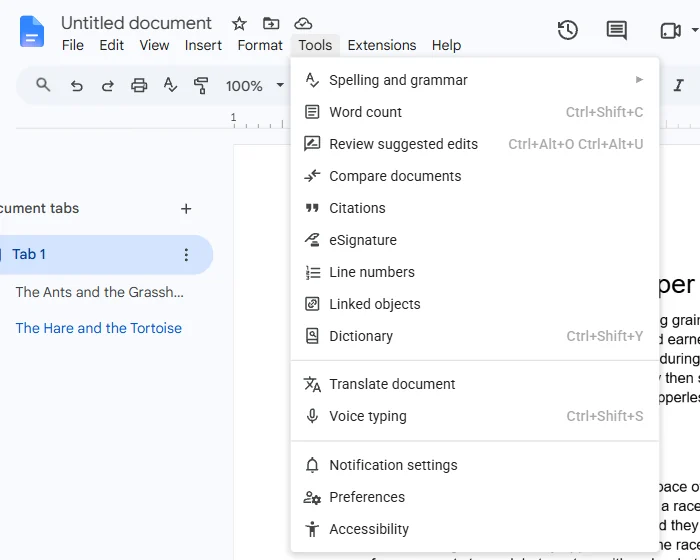 Tools menu in a free Google account: Voice typing types what you say; nothing here reads aloud
Six ways compared
| Way | Cost | Works on | Keeps your headings | Gives you an audio file |
|---|---|---|---|---|
| Listen to this tab | Paid Gemini plans | Desktop | Reads the document as it is | No |
| Screen reader support plus a screen reader | Free | Desktop and Chromebook | Announced by your screen reader | No |
| Your device's read-aloud feature | Free | iPhone, Android, Chromebook, Windows | No | No |
| Paste into a read-aloud reader | Free with browser voices | Any browser | Yes, as chapters | MP3 with an AI narrator, on credits |
| Download and open the file | Free with browser voices | Any browser | Yes, as chapters | MP3 with an AI narrator, on credits |
| Turn it into an audiobook | Credits | Any browser | Yes, as chapters | MP3 and M4B |
1. Listen to this tab (paid plans)
Google announced it on Workspace Updates on 18 August 2025. It's part of Gemini, so it appears on Business Standard and Plus, Enterprise Standard and Plus, the Gemini education and business add-ons, and Google AI Pro and Ultra. At launch it read English only, on desktop.
- Open the document on a computer.
- Choose Tools > Audio > Listen to this tab, or use the Listen to this tab button.
- Pick a voice and a playback speed in the player.
Authors on those plans can also add a play button to a document with Insert > Audio buttons, so readers can listen too. Google's help page lists voices such as Narrator, Educator and Coach. If you don't see the Audio entry, your account isn't on one of those plans, or its smart features are switched off.
2. Screen reader support
Under Tools > Accessibility settings there's a box called Turn on screen reader support, also reached with Ctrl+Alt+Z (Command+Option+Z on a Mac). It's often described as Google Docs' read-aloud setting, but it doesn't speak. It makes the document work with a separate screen reader, such as NVDA or JAWS on Windows, VoiceOver on a Mac or ChromeVox on a Chromebook, which then does the speaking (Google's help page).
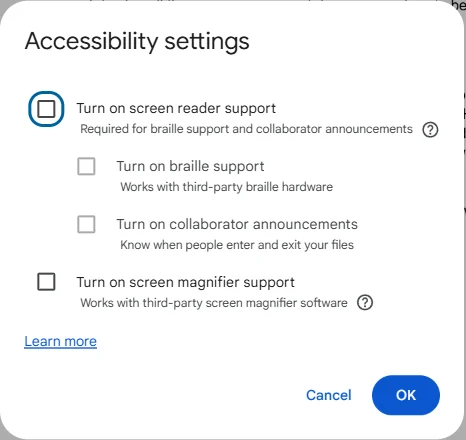 Accessibility settings: screen reader support, braille and magnifier options, none of which speak on their own
This is the right choice if you already use a screen reader for everything. For listening to a long document while you follow the text, the next options are simpler.
3. Your phone or computer's own reader
Every major system has a read-aloud feature that works across apps. Select some text, or the whole page, and it reads it in the system voice.
- iPhone and iPad: Settings > Accessibility > Read & Speak (called Spoken Content on iOS 18). Turn on Speak Selection to get a Speak button when you select text, or Speak Screen to have the page read with a two-finger swipe down from the top (Apple's guide).
- Android: Settings > Accessibility > Select to Speak, then use its shortcut and tap the text (Google's Android help).
- Chromebook: Settings > Accessibility, turn on Select-to-speak, then hold the Search key and drag over the text, or select it and press Search+S. Each word is highlighted as it's read (Chromebook help).
- Windows: Narrator starts and stops with the Windows key + Ctrl + Enter (Microsoft's guide).
These are quick for a paragraph or two. For a whole document they're harder to steer: there's no chapter list, and if you stop, finding your place again is up to you.
4. Paste it into a read-aloud reader
Select all in the Doc (Ctrl+A), copy (Ctrl+C), and paste into a reader made for long text. The text to speech reader on VoiceBookify reads pasted text with your browser's own voices for free, lights up each sentence as it's read, and remembers where you stopped on the same device. Nothing is uploaded. With an AI narrator, which uses credits, you can also download what it reads as an MP3.
Tip: copying from Google Docs keeps your headings. When we pasted our two-story Doc into VoiceBookify, each Heading 1 became its own chapter.
5. Download the Doc and open the file
File > Download offers eight formats. In our free account they were Microsoft Word (.docx), PDF Document (.pdf), OpenDocument Format (.odt), Plain Text (.txt), Rich Text Format (.rtf), Web Page (.html, zipped), EPUB Publication (.epub) and Markdown (.md) (Google's help page).
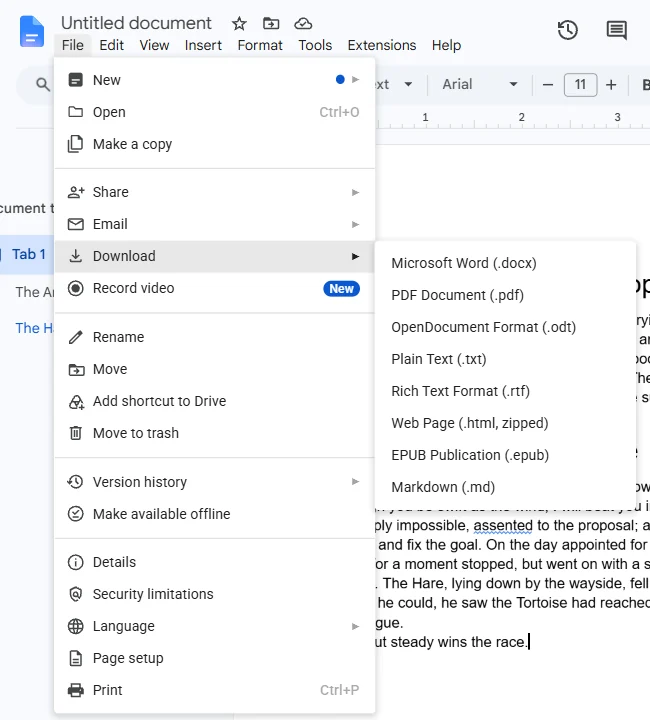 File > Download in Google Docs: Word, PDF, ODT, plain text, RTF, web page, EPUB and Markdown
Word, EPUB, plain text and Markdown keep the text clean for listening; PDFs work too. Open the downloaded file in the text to speech reader, or in the read PDF aloud reader if you chose PDF. Downloading is the better route for long documents: the file stays on your device, and when the document has headings the reader lists them as chapters you can jump between.
When we downloaded our Doc as Word and opened it, it showed a bug in our own reader: a document whose first line is a chapter heading, with no separate title, came out as one chapter. We fixed it the same day, so both stories now open as separate chapters and the book takes the Doc's name.
6. Turn the Doc into an audiobook file
When you want to keep the audio, to listen offline or share it with a reader, have it narrated. Paste the document into text to audiobook: it shows the chapters, words, length and credits as you paste, before you sign in. A narrator then reads it chapter by chapter, and you download an M4B audiobook with chapter marks and an MP3 for every chapter.
We pasted our test Doc: two stories, 224 words. The page found both chapters straight away and priced it at 2 credits, about a minute of audio.
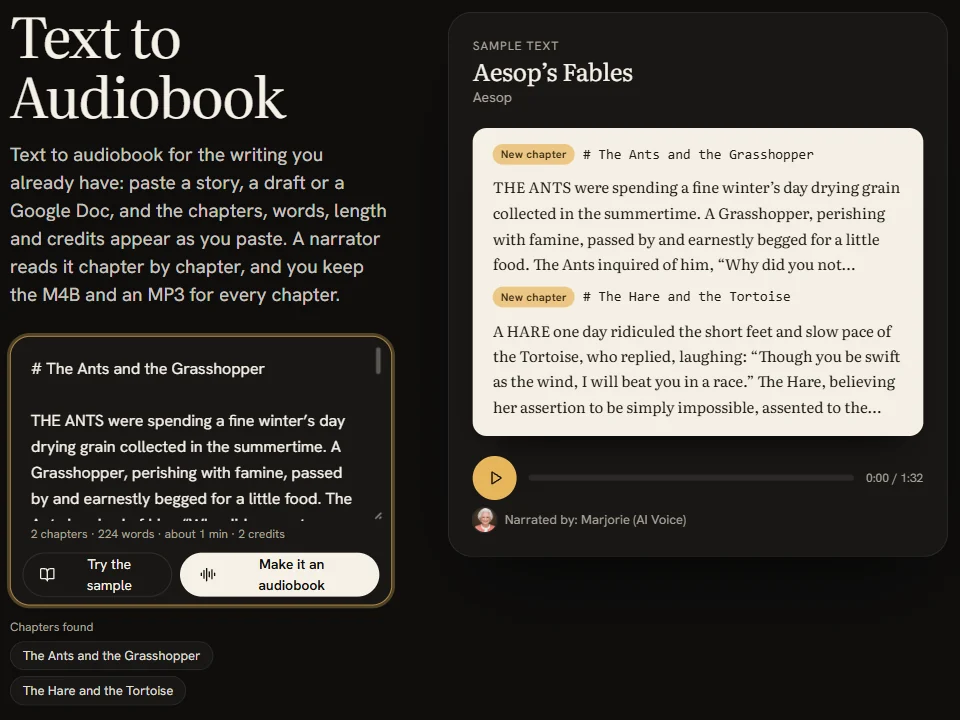 Pasted from Google Docs: both headings became chapters, with words, minutes and credits shown as we pasted
AI narration uses credits; one credit narrates 1,000 characters. You can hear every narrator's sample for free before choosing.
Which way should you use?
- Your work account has Gemini: use Listen to this tab. It's already in your menus.
- You use a screen reader every day: turn on screen reader support in Docs.
- You want a paragraph read on your phone: Speak Selection on iPhone, Select to Speak on Android.
- You want to listen to a long document and follow along: download it as Word or EPUB and open it in a read-aloud reader.
- You want an audio file to keep or share: turn it into an audiobook with chapters.
FAQ
Can Google Docs read to me?
Yes on paid Gemini plans, with Tools > Audio > Listen to this tab on a computer. On a free account, use your device's reader or paste the text into a read-aloud reader.
How do I turn a Google Doc into an audio file?
Google Docs doesn't export audio. Paste the document into a reader and download the MP3 with an AI narrator, or into a text to audiobook tool for an M4B with chapters and an MP3 per chapter.
How do you get Google Docs to talk to you on iPhone or Android?
Use the system reader: Speak Selection or Speak Screen on iPhone, Select to Speak on Android. Select the text in the Docs app and use the Speak option or the shortcut.
Does Voice typing read text aloud?
No. Tools > Voice typing turns your speech into text. It's the opposite of read aloud.
Why don't I see Listen to this tab?
It's only on paid Google Workspace and Google AI plans, and it needs smart features switched on. Free personal accounts don't have it.
Is reading a Google Doc aloud free?
Your device's reader and screen readers are free, and so is reading with your browser's voices in a web reader. Listen to this tab needs a paid plan, and AI narration of a whole document uses credits.
Read your Google Doc aloud with VoiceBookify
Copy your document and paste it into the text to speech reader to listen now with free browser voices, sentence by sentence, or with one of our 40 AI narrators in 9 languages on credits. To keep the audio, text to audiobook turns the same text into an M4B with chapters and an MP3 per chapter, priced as you paste.
Tools in this article
- Text to Speech ReaderHear text and documents one highlighted sentence at a time, with free browser voices or AI narrators.
- Read PDF AloudHear a PDF read aloud in your browser, with headers, page numbers and footnotes left out.
- Text to AudiobookPasted text split into chapters and narrated, as M4B and MP3.