Can Kindle Read to You? Every Read-Aloud Option
Can Kindle read to you? Yes: Assistive Reader in the Kindle app and on newer e-readers, VoiceView, Alexa and Audible narration. How to turn each one on.
VoiceBookify8 min read
On this page
- Kindle read-aloud options at a glance
- How to make the Kindle app read to you
- How to make a Kindle e-reader read to you
- How to get Alexa to read your Kindle books
- How to hear a human narrator instead
- Why a Kindle book won't read aloud
- What about PDFs and EPUBs from somewhere else?
- Which option should you use?
- FAQ
- Listen to your own EPUB or PDF with VoiceBookify
Can Kindle read to you? Yes. The free Kindle app reads books aloud with a feature called Assistive Reader on iPhone, iPad, Android, Mac, Windows and Fire tablets, and newer Kindle e-readers have it too. Alexa can read your Kindle books on an Echo, and if you want a human narrator, you add the Audible audiobook and switch between reading and listening.
Each built-in option uses a computer voice from your device, and each has rules about which books it reads. We went through Amazon's help pages on 11 November 2026 for every device below and link each one, so you can check the current wording yourself. One thing changed recently: Kindle book pages no longer show a "Text-to-Speech" line, so the old advice to look for it no longer works.
Kindle read-aloud options at a glance
| Where you read | Feature | Voice | What it needs |
|---|---|---|---|
| Kindle app on iPhone, iPad, Android | Assistive Reader | Your device's voices | A book with Enhanced Typesetting |
| Kindle app on Mac and Windows | Assistive Reader | Your computer's voices | The same |
| Kindle e-reader, 11th generation or newer, Scribe, Colorsoft | Assistive Reader | Built-in voice, five languages | Bluetooth headphones or a speaker |
| Any Kindle e-reader with Bluetooth (2016 or later) | VoiceView screen reader | Built-in voice | A Bluetooth audio device |
| Fire tablet | Assistive Reader in the Kindle app, VoiceView, Speak Selection | Fire voices | Fire OS 7 or later for Speak Selection |
| Echo and other Alexa devices | Kindle Assistive Reader | Alexa | Not on Alexa+ |
| Any of the above | Read and Listen with Audible | A human narrator | The audiobook as well as the ebook |
How to make the Kindle app read to you
Assistive Reader is the read-aloud mode of the Kindle app. It speaks with the text to speech engine your phone, tablet or computer already has, and it highlights each word as it reads.
- Open the book in the Kindle app.
- Tap the top centre of the page to show the menus, then tap Aa.
- Open More and turn on Assistive Reader.
- Tap the page to show the player: play and pause, change the speed, or go back 30 seconds.
- To start from a particular word, press and hold it, then tap Play.
On a computer, the shortcuts are quicker. In Kindle for Windows, Ctrl+A turns Assistive Reader on and Ctrl+T starts or stops reading (Amazon's Windows page). On a Mac, press Command+T or choose Tools > Start Text-to-Speech (Amazon's Mac page).
The voice is your device's, so it sounds like your phone's other spoken features. To change it, change the system voice in your phone or computer settings.
How to make a Kindle e-reader read to you
Kindle e-readers play spoken audio through Bluetooth headphones or a Bluetooth speaker, so pair one first. Which feature you get depends on the model.
Assistive Reader on newer Kindles. The 11th generation and newer Kindles, Kindle Scribe and Kindle Colorsoft have Assistive Reader built in, in English, Spanish, French, German and Italian. You turn it on the same way as in the app: Aa, then More, then Assistive Reader.
VoiceView on older Kindles. VoiceView is a screen reader: it reads the whole screen, menus included, and is made for readers who are blind or have low vision. It works on Kindles with Bluetooth, which means models from 2016 onwards (Amazon's Bluetooth page).
- Put your Bluetooth headphones or speaker in pairing mode.
- On an 11th generation or newer Kindle, press the power button three times within two seconds. On older models, hold the power button for nine seconds.
- Hold two fingers slightly apart on the screen until the Kindle connects and starts speaking.
- To turn it off later, open Quick Actions and switch VoiceView Screen Reader off.
The steps are on Amazon's VoiceView page. VoiceView speaks English, French, German, Italian, Portuguese and Spanish.
How to get Alexa to read your Kindle books
On an Echo and other devices with Alexa built in, the feature is also called Kindle Assistive Reader. Ask Alexa to read one of your books, or turn it on in the Alexa app under More > Settings > Accessibility > Kindle Assistive Reader. Say "Show my Kindle books" to hear or see the list (Amazon's Alexa page).
You can move by chapter or by time, change the speed and set a stop timer. Two limits apply: the book needs Enhanced Typesetting and a language Alexa supports, and Amazon says the feature isn't available on Alexa+.
How to hear a human narrator instead
Every option above uses a synthetic voice. For a professional narrator, buy or borrow the Audible audiobook of the same book. With Read & Listen, which Audible used to call Whispersync for Voice, you can switch between reading the ebook and listening to the audiobook and keep your place (Audible's help page).
In the Kindle app and on Fire tablets, the text can also be highlighted while the narrator reads, which Amazon calls Immersion Reading. We explain how that works, and what the research says about reading and listening at the same time, in our guide to immersion reading.
Tip: when a Kindle book has an Audible version, Amazon offers it at a discount to people who already own the ebook. The offer shows on the book's page.
Why a Kindle book won't read aloud
When the Assistive Reader switch is missing or greyed out, one of these is usually the reason:
- The book doesn't have Enhanced Typesetting. Amazon lists it on the book's page as "Enhanced Typesetting: Enabled". Assistive Reader and Alexa need it. The old "Text-to-Speech: Enabled" line isn't shown on book pages any more; when we checked two Kindle books' pages, they listed "Screen Reader: Supported" and "Enhanced typesetting: Enabled" instead.
- The book isn't yours to read. It has to be bought, borrowed, or shared with you through Family Library.
- Your device doesn't speak the book's language. The app uses your device's voices, so a book in a language your phone has no voice for won't play.
- You're on Alexa+. Kindle Assistive Reader isn't available there.
- Your e-reader is older than the 11th generation. Use VoiceView with Bluetooth instead.
Amazon notes that the accessibility details on a book's page come from the publisher, so a book can lack them even when it would otherwise read fine.
What about PDFs and EPUBs from somewhere else?
Assistive Reader is for books in your Kindle library. Many readers also have EPUBs from public domain libraries, PDFs from work or school, or a manuscript of their own, and those don't need Kindle at all.
We built the book reader aloud on VoiceBookify for exactly those files. Open a DRM-free EPUB or PDF and it starts at chapter one, skipping the title page, contents and licence, and reads with your browser's own voices for free. When we drop a Kindle store file (AZW3, KFX or MOBI) into it, it doesn't try to open it: it says that books bought from Kindle open only in Amazon's apps, where Assistive Reader can read them aloud.
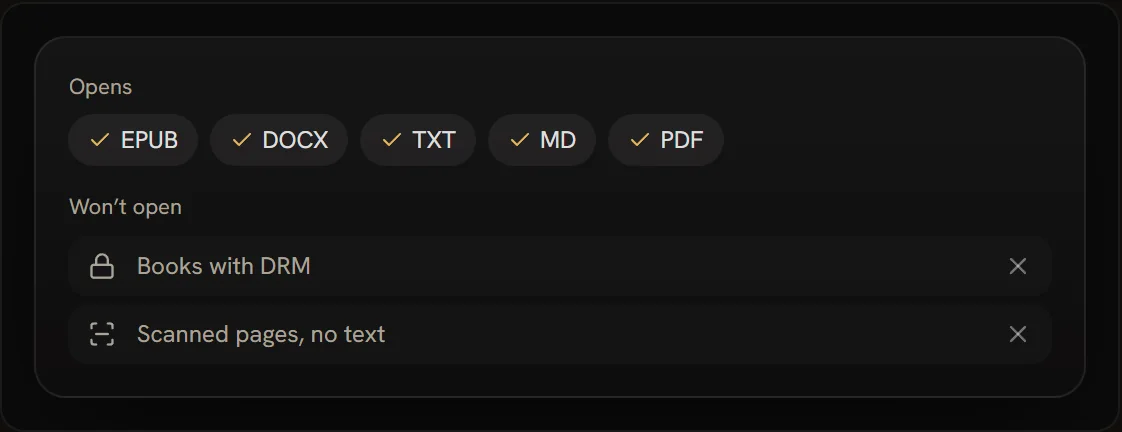 What the reader opens: EPUB, DOCX, TXT, Markdown and PDF. Books with DRM and scanned pages without text won't open
Which option should you use?
- You read on your phone or tablet: Assistive Reader in the Kindle app. It's free, it highlights the words, and it uses voices you already have.
- You read on a Kindle Paperwhite or Scribe: Assistive Reader on 11th generation and newer models, or VoiceView on older ones, with Bluetooth headphones.
- You want to listen while cooking or driving: Alexa on an Echo, or the Audible audiobook if you want a real narrator.
- You need the whole screen read, menus included: VoiceView on an e-reader, or your phone's screen reader (VoiceOver or TalkBack) with the Kindle app.
- Your book isn't from Kindle: a read-aloud reader for EPUB and PDF, such as the book reader aloud or read PDF aloud.
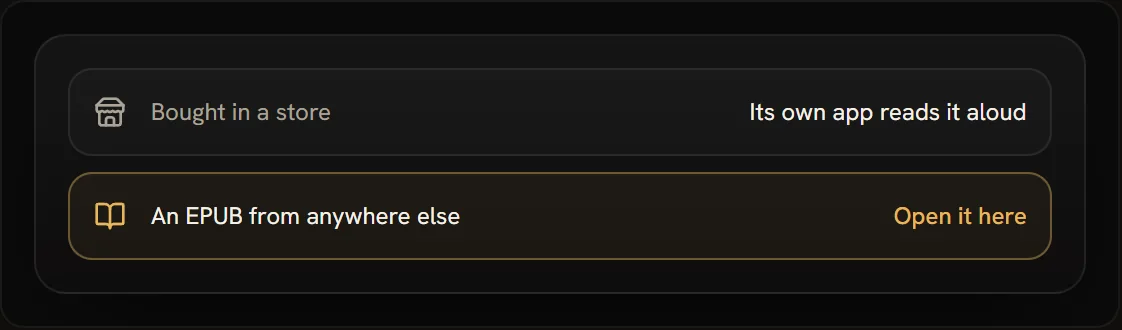 A book bought in a store is read aloud by that store's own app; an EPUB from anywhere else opens in the reader
FAQ
Can Kindle read to you on iPhone and iPad?
Yes. Open the book, tap the top of the page, tap Aa, then More, and turn on Assistive Reader. It uses the iPhone's own voices and highlights each word.
Can Kindle read to you on Android?
Yes, the same way: Aa, More, Assistive Reader in the Kindle app. It uses the Android text to speech engine set on your phone.
Can Kindle read to you on a PC or Mac?
Yes. In Kindle for Windows, press Ctrl+A to turn on Assistive Reader and Ctrl+T to start reading. On a Mac, press Command+T or use Tools > Start Text-to-Speech. The older Kindle for PC app hasn't been supported since 30 June 2026.
Does Kindle Paperwhite read aloud?
The 11th generation and newer Paperwhites have Assistive Reader in five languages, and every Paperwhite with Bluetooth has VoiceView. Both play through Bluetooth headphones or a speaker.
Is Kindle read aloud free?
Assistive Reader, VoiceView and Kindle Assistive Reader on Alexa cost nothing beyond the book. A human narrator means buying or borrowing the Audible audiobook.
Can Alexa read Kindle books?
Yes, books with Enhanced Typesetting in a language Alexa supports. Say "Show my Kindle books" to see them. Amazon says the feature isn't available on Alexa+.
Why is there no Assistive Reader option in my book?
Usually the book lacks Enhanced Typesetting, or your device has no voice for its language. Check the book's page on Amazon for "Enhanced Typesetting: Enabled".
Listen to your own EPUB or PDF with VoiceBookify
For books outside your Kindle library, the book reader aloud opens EPUB and PDF files in your browser. Nothing is uploaded. It reads with your browser's voices for free, highlights each sentence as it goes, has a sleep timer, and offers to continue where you stopped. For a more natural voice, our 40 AI narrators in 9 languages read on credits and highlight every word.
If you wrote the book yourself, the Kindle to audiobook page shows how to turn your own manuscript into an audiobook with chapters, and which stores take it.
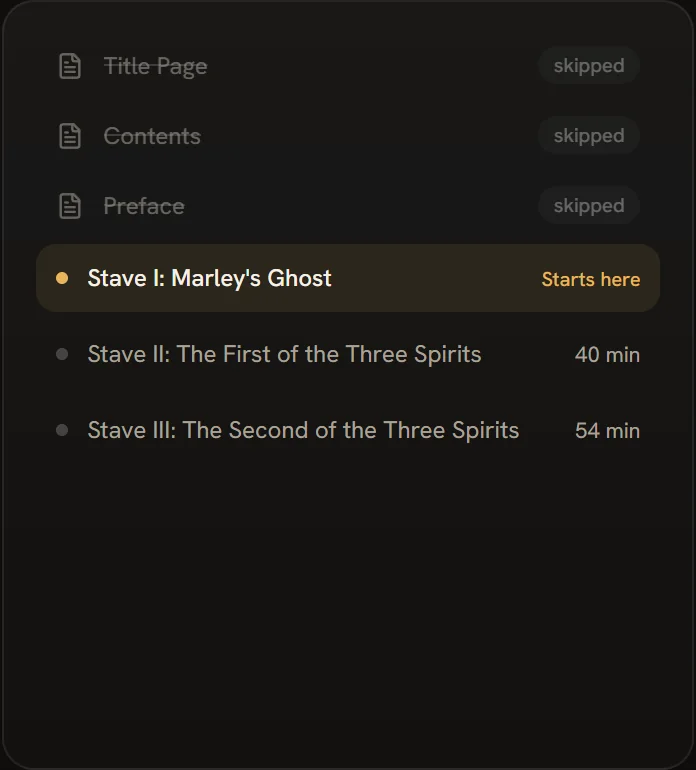 The reader starts at chapter one and skips the title page, contents and preface